I would like to let you know that I'm writing some lines (and hope to post them here soon) about MS Dynamics CRM 4.0 and Marketing Newsletters.
As we are testing and developing our CRM 4.0 we are spending nearly 80% of our time trying to understand and overcome some limitations regarding this marketing process. We even developed a specific workflow to send newsletters from Queues and another one just to handle errors (Mail Delivery Failed, Undeliverable...). These workarounds are not perfect but they are very useful for us. I will also tell you how the unsubscribe works (dynamic, hardcoded...).
But you'll have to wait a couple of days because I'll be on holidays during next week.
Showing posts with label customization. Show all posts
Showing posts with label customization. Show all posts

2008-04-22
Marketing Campaign Offer Limitation Workaround
In my previous post I told you about the Marketing Campaign OFFER (objective) limitation of 2000 characters. That's a very short amount of characters specially if you want to send HTML e-mail materials! This system attribute/field can't be changed like regular (non-system) attributes/fields. But Jim Wang found a way to change it! Thank you Jim Wang for this precious yet simple workaround:
- Export the Campaign Activity entity;
- Edit the "customization.xml" file (look for attribute/field "objective" and change length to up 100.000 characters);
- Import the "customization.xml" to your CRM;
- Publish your customization (just to make sure!).
This workaround may be unsupported but according to Jim Wang it's pretty safe. I hope Microsoft reviews this 2000 characters limitation and/or the ability to change it.
2008-04-16
How to hide buttons in MS CRM 4.0 in runtime
I googled about hiding buttons in MS CRM 4.0 and I was sent to this brilliant post from David Fronk from Dynamic Methods Inc.. Applying his script to the entity's form through the onLoad event I was able to hide permanently a button. However I was looking for more!
I wanted to hide a button only if a specific field was filled. And how did I pull this one off? Simple! Just added the piece of code to the field's onChange event! It's important to keep the code in the onLoad event if you want to keep the button hidden when you save and close your entity and then reopen it.
I wanted to hide a button only if a specific field was filled. And how did I pull this one off? Simple! Just added the piece of code to the field's onChange event! It's important to keep the code in the onLoad event if you want to keep the button hidden when you save and close your entity and then reopen it.
2008-03-20
Translations for new fields (attributes) and entities


It's quite simple to transalte CRM fields (attributes) and entities labels. How do you do it? Go to Settings > Customization > Export Labels for Translation.
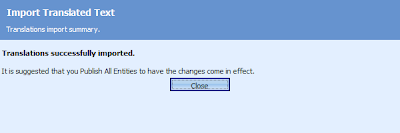
After translation (I used MS Excel to edit the file) you need to import the XML file back to CRM. Import Labels for translation. Then go to Customize entities and hit More Actions > Publish All Customizations and you should be done. It isn't enough to hit the Publish button you really have to Publish All Customizations. Don't ask me why... Ask Microsoft!
Missing fields!
MS CRM has a great collection of contact fields (attributes) but lacks some basic fields suchas as ID document related (ID type, ID number and ID Country Issuer) and VAT document related (VAT number and VAT Country Issuer). Another request for Microsoft!
 Custom attributes that should be system (standard) attributes.
 Custom attributes that should be system (standard) attributes.
 ID related fields go to section Personal Information at Details tab.
 And VAT fields go to the Billing Information section at Administration tab.
And let the fun begin: customization!

My first customization was really simple and logical. Being MS CRM 4 a strategic marketing tool I don't get why there isn't a tab called Marketing at the Contact form. Create, Save and Publish! Don't forget to Publish!

I'll just add the Marketing Information fields from the Administration tab here and create my customers preferences using a new bit attribute. It'll be easier for marketeers to create marketing lists if you use bit based preferences rather than creating a new entity called preferences. Now it's even easier to create attributes one after another thanks to the Save and New button for attributes. Another warning: by default the order of the bit values is No and Yes and if you check system attributes the order is Yes and No.

The last finding will only affect the order of the values. Check out Preferences attributes (custom) versus Send Marketig Materials (system attribute). To improve the user experience you should present the new attributes respecting the system order (Yes/No). The worst part of this is that you can't change the order (Move up or Move down) once the attribute is created. You need to unpublish it (remove it from the form then publish) and then you can delete it and create it again (create, add to form, publish). Boring! So be carefull!
Microsoft if you're listening please change de default bit attribute order! Well, if I don't shout I will never get it so I guess it's better to shout than not to.
Subscribe to:
Posts (Atom)