I would like to let you know that I'm writing some lines (and hope to post them here soon) about MS Dynamics CRM 4.0 and Marketing Newsletters.
As we are testing and developing our CRM 4.0 we are spending nearly 80% of our time trying to understand and overcome some limitations regarding this marketing process. We even developed a specific workflow to send newsletters from Queues and another one just to handle errors (Mail Delivery Failed, Undeliverable...). These workarounds are not perfect but they are very useful for us. I will also tell you how the unsubscribe works (dynamic, hardcoded...).
But you'll have to wait a couple of days because I'll be on holidays during next week.
Showing posts with label issue. Show all posts
Showing posts with label issue. Show all posts

2008-04-23
CRM 4 ScaleGroup Job Editor
As we are facing some DELETIONSTATECODE issues regarding Contacts and Leads we have been googling for a solution. Marco found this useful CRM 4 ScaleGroup Job Editor utility.
"This utility is used to change the DeletionService and Re-Indexing service jobs in CRM 4.0. You can set the next run date/time of a job as well as change the schedule at which the job will continue to run automatically. " as you can red here.
This utility works but it didn't solve our issues... And the search for a solution continues as we also try to better frame the issue.
"This utility is used to change the DeletionService and Re-Indexing service jobs in CRM 4.0. You can set the next run date/time of a job as well as change the schedule at which the job will continue to run automatically. " as you can red here.
This utility works but it didn't solve our issues... And the search for a solution continues as we also try to better frame the issue.
2008-04-22
Marketing Campaign Offer Limitation Workaround
In my previous post I told you about the Marketing Campaign OFFER (objective) limitation of 2000 characters. That's a very short amount of characters specially if you want to send HTML e-mail materials! This system attribute/field can't be changed like regular (non-system) attributes/fields. But Jim Wang found a way to change it! Thank you Jim Wang for this precious yet simple workaround:
- Export the Campaign Activity entity;
- Edit the "customization.xml" file (look for attribute/field "objective" and change length to up 100.000 characters);
- Import the "customization.xml" to your CRM;
- Publish your customization (just to make sure!).
This workaround may be unsupported but according to Jim Wang it's pretty safe. I hope Microsoft reviews this 2000 characters limitation and/or the ability to change it.
2008-04-18
Marketing Campaign Offer Limited to 2000 characters
On a previous post I explained How to send HTML marketing e-mails. What I didn't know at the time was that the OFFER field is limited to 2000 characters! First I didn't panic because I thought I could change it... But now I'm very worried because I can't change this system attribute/field!
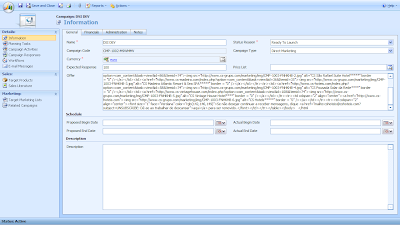
If your HTML exceeds 2000 characters it will be truncated!
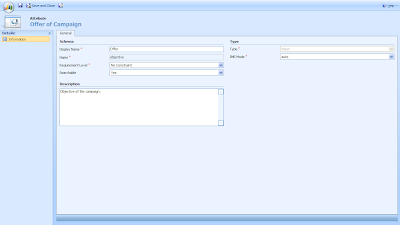
Suggestions how to hack this 2000 characters limit?
If your HTML exceeds 2000 characters it will be truncated!

It isn't very difficult to write HTML pages with more than 2000 characters, specially if you have to include a lot of long links as I have to.
Suggestions how to hack this 2000 characters limit?
2008-04-10
Duplicate Detection Rule Detects Phantom Contacts
I'm running a simple duplicate detection rule for contacs with the same e-mail address. I'm getting phantom duplicates: I get a duplicate (top list) but no potential duplicate record (bottom list). Instead of the bottom list I get this warning "Potential duplicate records: None". The image below shows a phantom duplicate: the selected active record has "Potential duplicate records: None".

After some investigation I realized that there was a previously deleted record (2 days ago) with the same e-mail. The deleted record exists only in the MS CRM DB and its DeletionStateCode equals 2! However my duplicate detection rule still sees him. I believe it shouldn't!
MSCRMAsyncService which as I read is supposed to handle the deletion of records ir running but doesn't delete anything... Very very strange!
I made a post about it at Microsoft Dynamics' Forums.
MS Dynamics CRM 4.0 Diagnostic Tool
Benjamin Lecoq has released the CrmDiagTool for CRM 4.0. You should read his post about it and download it from the link he provides.
By the way if you wish to enable tracing for MS Dynamics CRM 4.0 you should check the following KB article: http://support.microsoft.com/kb/907490.
By the way if you wish to enable tracing for MS Dynamics CRM 4.0 you should check the following KB article: http://support.microsoft.com/kb/907490.
2008-04-09
Facility/Equipment Import Wizard Issue
Whenever I try to import facility/equipment entities using the import wizard I get an error related with a missing column/attribute: "unmapped required columns: 1" (image below).
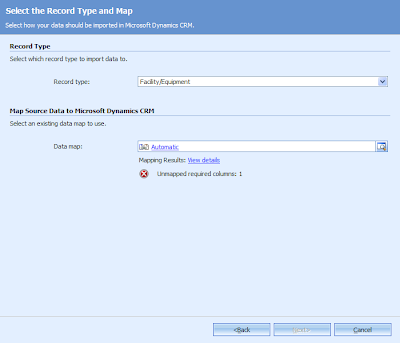
The missing column/attribute name is Calendar and the Reason states the following: "Error: unmapped mandatory column" (imagem below).
The missing column/attribute name is Calendar and the Reason states the following: "Error: unmapped mandatory column" (imagem below).

The "Calendar" attribute (image below) is a system required attribute of the Facility/Equipment entity and its description is the following: "Fiscal calendar associated with the facility/equipment.".

I haven't set my Fiscal Calendar yet because I read at the Implementation Guide that one can do it only once and in order to work with Sales Quota. I'm guessing I don't need to set it for now because when I mannually create a Facility/Equipment I don't get any kind of Fiscal calendar related error. I'm guessing I have to bypass this issue some how... I will post this at Dynamics Forums, perhaps someone already has been over this.
2008-04-04
Fix Date and Birthdate/Birthday (for MS CRM 4.0 CrmService)
If you are using CrmService's Create or Update methods perhaps you already noticed that when you send a date in the DD-MM-YYYY HH:MM:SS format CrmService will read this date as MM-DD-YYYY HH:MM:SS and that's what he'll write to your MSCRM db.
So if you're writing a contact's birthdate/birthday like "24-07-1980 00:00:00" CRM will throw an exception because he's using "24" as MM and "07" as DD when he shouldn't. You need a workaround such as your own fixDate() method. The following fixDate() method was created by Marco Silva, member of my MS CRM Dynamics 4.0 project team of two (me and him). This method gets something like "24-07-1980 00:00:00" and returns it in a CRM friendly format "07-24-1980 21:00:00". If you check your MS CRM db you will see the correct date but perhaps not the correct time "24-07-1980 20:00:00".
private static string fixDate(String date)
{
string day = data.Substring(0, 2);
string month = data.Substring(3, 2);
string year = data.Substring(6, 4);
string hour = "21";
string min = "00";
string sec = "00";
return month + "-" + day + "-" + year + " " + hour + ":" + min + ":" + sec;
}
You may notice that we're forcing the hour, minutes and seconds and there's a pretty good explanation for that. The explanation is related with Time Zone handling issues that affect MS CRM 4 (and 3). My time zone settings (MS CRM server, SQL server, desktop) are all GMT (...Lisbon). Some specific datetimes (not all) are written to MS CRM DB with less an hour and that makes them go back one day.
If you send "24-07-1980 00:00:00" or "07-24-1980 00:00:00" to be more accurate to your CrmService it will write "23-07-1990 23:00:00" to MS CRM db! Ooops! Wrong birthdate! However if you check your contact's file you will see "24-07-1980". However the MS CRM db birthdate datetime is wrong ("23-07-1990 23:00:00") and you can't export it to an external db such as a datawarehouse. The workaround for this one requires two different approaches: a CrmService approach and an onSave approach (to fix typed birthdates).
Both of these workarounds require you to change birthdate's time to something bigger than "01:00:00" because if the CrmService "steals" you one hour it won't "steal" you a whole day! I chose to set "21:00:00" as my "fake" time. So, if I send this CrmService friendly "fake" date "07-24-1980 21:00:00" to CrmService he will write "24-07-1980 20:00:00" to MS CRM db! And that works for me as the birthdate time isn't important (or visible). So my first workaround also is solved by the fixDate() method above. The second workaround has to be properly included inside the onSave event which you have to enable.
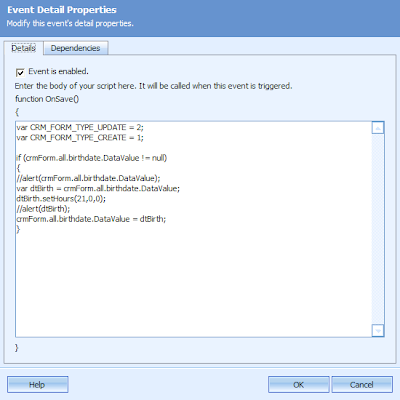 This workaround was provided by Pedro Pereira who helped me fix this issue for MS CRM 3.0 but it works fine with MS CRM 4.0.
So if you're writing a contact's birthdate/birthday like "24-07-1980 00:00:00" CRM will throw an exception because he's using "24" as MM and "07" as DD when he shouldn't. You need a workaround such as your own fixDate() method. The following fixDate() method was created by Marco Silva, member of my MS CRM Dynamics 4.0 project team of two (me and him). This method gets something like "24-07-1980 00:00:00" and returns it in a CRM friendly format "07-24-1980 21:00:00". If you check your MS CRM db you will see the correct date but perhaps not the correct time "24-07-1980 20:00:00".
private static string fixDate(String date)
{
string day = data.Substring(0, 2);
string month = data.Substring(3, 2);
string year = data.Substring(6, 4);
string hour = "21";
string min = "00";
string sec = "00";
return month + "-" + day + "-" + year + " " + hour + ":" + min + ":" + sec;
}
You may notice that we're forcing the hour, minutes and seconds and there's a pretty good explanation for that. The explanation is related with Time Zone handling issues that affect MS CRM 4 (and 3). My time zone settings (MS CRM server, SQL server, desktop) are all GMT (...Lisbon). Some specific datetimes (not all) are written to MS CRM DB with less an hour and that makes them go back one day.
If you send "24-07-1980 00:00:00" or "07-24-1980 00:00:00" to be more accurate to your CrmService it will write "23-07-1990 23:00:00" to MS CRM db! Ooops! Wrong birthdate! However if you check your contact's file you will see "24-07-1980". However the MS CRM db birthdate datetime is wrong ("23-07-1990 23:00:00") and you can't export it to an external db such as a datawarehouse. The workaround for this one requires two different approaches: a CrmService approach and an onSave approach (to fix typed birthdates).
Both of these workarounds require you to change birthdate's time to something bigger than "01:00:00" because if the CrmService "steals" you one hour it won't "steal" you a whole day! I chose to set "21:00:00" as my "fake" time. So, if I send this CrmService friendly "fake" date "07-24-1980 21:00:00" to CrmService he will write "24-07-1980 20:00:00" to MS CRM db! And that works for me as the birthdate time isn't important (or visible). So my first workaround also is solved by the fixDate() method above. The second workaround has to be properly included inside the onSave event which you have to enable.
This workaround was provided by Pedro Pereira who helped me fix this issue for MS CRM 3.0 but it works fine with MS CRM 4.0.
2008-04-03
Unwanted headache due to data type mismatch
First of all let me explain how my MS CRM Dynamics 4.0 system gets it's data.
Like any other company we have one big ERP/PMS that is our main data source and other small ERP/PMS systems. Most of this systems rely on MS SQL Server technology (2000 and 2005) for their database needs. This is great because it allows us to use SQL Server 2005 Integration Services (SSIS) to pump the data from each system's database and consolidate it to a single database. In the BI (Business Intelligence) world this process is called ETL or Extraction, Transformation and Loading. Although here we rely on the SSIS for the Extraction and Transformation phases and then we use CrmService webservice to send data to the CRM (create, update). Doing this we make sure our CRM and our ERP/PMS systems are automatically synched. Although this sounds very simple and you can learn it by yourself it really speeds up the process if you can get help from someone more experienced.
We are now developing the console application that will run in the background. This app will be responsible for retrieving data from the ETL databse and push it to the CRM using the CrmService webservice. For instance, we retrieve one contact (transformed) from our ETL database and then we push it to the CRM but first we need to know if the contact already exists there. Why's that? If the contact exists we use the Update method, if it doesn't we use the Create method. How to determine if he exists? Simple, choose a key field such as ERP/PMS customer number. This ERP/PMS primary key (PK) will act as a foreign key (FK) for our contact. If the contact is found we return the GUID and then call the Update method.
For more details about CrmService and it's methods I would advise you to take a look at Working with Microsoft Dynamics CRM 4.0 and Microsoft Dynamics CRM 4.0 Unleashed. This books are good starting points for learning how to use the CrmService. They are better used together as one has more details but fewer examples and the other has more examples and fewer details.
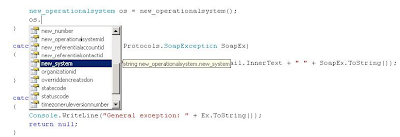
After some initial coding and successfull testing (retrieve data, push data) using the new much appreciated Visual Studio 2008 our problems began. Our last build of the console application crashed again and again and we didn't know why. Through debbuging we realized that it was a problem related with our RetrieveMultiple method call. After a couple of ours of nonsense coding we caught the bug: earlier we had changed an entity attribute from picklist to string (delete attribute, new attribute, save and publish), however our webreference (Visual Studio 2008) didn't reflect that change and we had to remove the web reference and add it again in order to "squish" the bug! This picture saved the day!
2008-03-27
Using Data Maps to Import Data
I would advise you to use the Auto Mapping feature first because the Data Maps feature has a small but annoying issue that I will tell you now. However using data maps to import data can be done if you are aware of that small but annoying issue.
Scenario: I want to upload some data to my CRM but I want to map the address fields in my file to the Adress 2 fields in CRM. I can change the name of the fields in the file or I can create a specific data map. I will choose this last option.
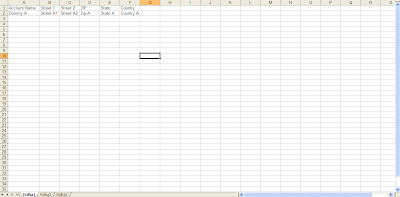
So I have a regular *.xls file with my data called "data map dummy.xls" with the fields Account Name, Street 1, Street 2, ZIP, State and Country. (image below)
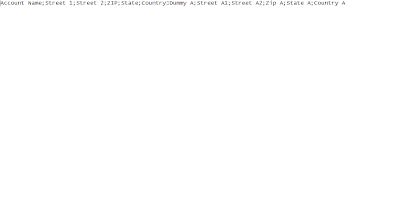
I will save this file choosing CSV (comma separated values) format and I will call it "data map dummy.csv". What happens now is that due to my regional settings (guess!) the CSV file is actually a semicomma (;) separated values file. I used good old notepad to check that (image below).
After the file is loaded you need to check the Column Headings in order to see if everything went well and... it didn't! Why? The "Load sample data" action doesn't recognize semicomma (;) separated values. Boring! Boring! (image below)
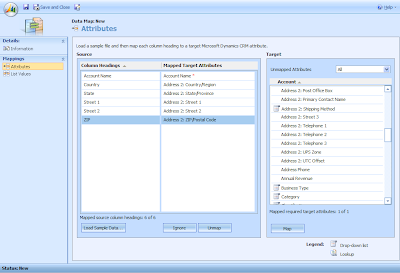
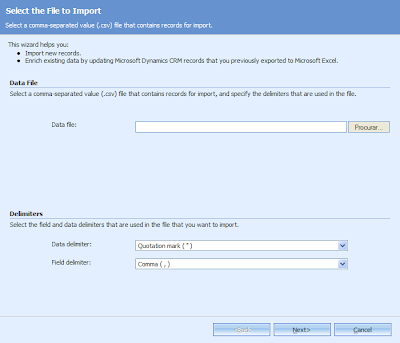
Don't forget to Save your data map. All of this could be avoided if one had the option to choose the field delimeters ("," or ";") just like it's possible to do during a regular data import process when you get to choose the data and field delimeters (image below).
Good luck for your imports!
Scenario: I want to upload some data to my CRM but I want to map the address fields in my file to the Adress 2 fields in CRM. I can change the name of the fields in the file or I can create a specific data map. I will choose this last option.
So I have a regular *.xls file with my data called "data map dummy.xls" with the fields Account Name, Street 1, Street 2, ZIP, State and Country. (image below)
I will save this file choosing CSV (comma separated values) format and I will call it "data map dummy.csv". What happens now is that due to my regional settings (guess!) the CSV file is actually a semicomma (;) separated values file. I used good old notepad to check that (image below).
Then you go to the New Data page option and press "Load Sample Data" button. You pick the file, in my case "data map dummy.csv".

After the file is loaded you need to check the Column Headings in order to see if everything went well and... it didn't! Why? The "Load sample data" action doesn't recognize semicomma (;) separated values. Boring! Boring! (image below)

The solution as I found out by myself is to replace the semicommas (;) by commas (,) using the find and replace feature of notepad. Be careful using this feature because if you have data like street addresses separated by commas or semicommas you can get yourself in big trouble. (image below).

The best thing to do is NEVER use a data file to create a data map but a dummy file with simple data (no commas or semicommas data). Using the modified "data map dummy.csv" the Load Sample Data works fine and then you'll only need to map the Column Headings to the Mapped Target Attributes. (image below)
Don't forget to Save your data map. All of this could be avoided if one had the option to choose the field delimeters ("," or ";") just like it's possible to do during a regular data import process when you get to choose the data and field delimeters (image below).
Good luck for your imports!
2008-03-24
MS CRM 4 Data Migration Manager (DMM) finally working

MS CRM 4 DMM (Data Migration Manager) as I mentioned in previous posts is quite demanding regarding its installation and configuration.

I finally managed to get it working on a client computer but for that I had to let the DMM's installer to also install a local instance of SQL Server Express. Everytime I tried to use a remote SQL Server 2005 instance he gave me troubles with permissions. So I decided to let him create a local database and now it's finally working. Although this is not the configuration that I desired for testing purposes it will have to do.
Microsoft Dynamics CRM 4.0 Connector for SQL Server Reporting Services Issue

This long name component "Microsoft Dynamics CRM 4.0 Connector for SQL Server Reporting Services Issue" gave me a long time trouble to install. I got this error message "Unable to validate SQL Server Reporting Services Report Server installation". As I had followed all the steps and recomendations mentioned on the installation guide I didn't know what was causing that unexpected behavior.
I googled a little and I found this KB article (KB947060) about it. The problem occured because I was trying to install the MS Dynamics CRM Connector for SQL Server 2005 Reporting Services on a named instance of SQL Server 2005 RS and it seems the installer doesn't behave as it should under these conditions.
The KB gave me two possible resolutions but only one applied to my situation: Method 2: Modify the Install-config.xml file. The steps needed to solve this issue are well explained in the KB article. If you're running SQL Server 2005 on a AMD 64 platform don't forget to copy the SrsDataConnector files from the drive:\Server\am64 folder instead of the suggested drive:\Server\i386. I sent a feedback to Microsoft about this tiny detail.
After modifying the install-config.xml file for the SrsDataConnector I finally ran the SetupSrsDataConnector.exe /CONFIG path of the folder that contains the Install-config.xml file\install-config.xml command and managed to finish the installation successfully.
I googled a little and I found this KB article (KB947060) about it. The problem occured because I was trying to install the MS Dynamics CRM Connector for SQL Server 2005 Reporting Services on a named instance of SQL Server 2005 RS and it seems the installer doesn't behave as it should under these conditions.
The KB gave me two possible resolutions but only one applied to my situation: Method 2: Modify the Install-config.xml file. The steps needed to solve this issue are well explained in the KB article. If you're running SQL Server 2005 on a AMD 64 platform don't forget to copy the SrsDataConnector files from the drive:\Server\am64 folder instead of the suggested drive:\Server\i386. I sent a feedback to Microsoft about this tiny detail.
After modifying the install-config.xml file for the SrsDataConnector I finally ran the SetupSrsDataConnector.exe /CONFIG path of the folder that contains the Install-config.xml file\install-config.xml command and managed to finish the installation successfully.
Subscribe to:
Posts (Atom)